Tuesday, February 12, 2013

Lync 2013 Reverse Proxy Configuration using IIS/ARR

Lync 2013 Reverse Proxy Configuration using IIS/ARR

In previous versions of Lync the Forefront Threat Management Gateway (TMG) was the Microsoft recommended and documented way of implementing the reverse proxy for Lync. Starting with 2013 TMG can no longer be licensed for use. It seems that the alternative to this is to use IIS/ARR to handle the reverse proxy.

The following directions outline how to configure and enable IIS/ARR on a windows server 2012(GUI) Standard Edition Server. *Please note that currently we had to use the GUI because you need to use the Web Platform Installer which is not supported in Server 2012 (core) configuration. We had tried to manually install the components and something in the Web Farm Framework 1.1 doesn't correctly get added.

The reverse proxy is required for things like mobile device connectivity, meeting presentations to external contacts and dial-in users.

Machine and Enviroment Specifications/Settings

  • Server 2012 Standard Gui
  • 2 NICs 1 external DMZ , 1 internal DMZ
    • The default gateway should be on the external nic and if using OfficeWebApps servers to be able to present PowerPoint slides it will need 2 IP addresses in that external sub-net. In our example we will be using the following:
      • x.x.36.84/32 will redirect to the Lync Front End Pool
      • x.x.36.88/32 will redirect to the Office Web Apps Server
    • The internal DMZ will need a single address with no default gateway. Instead you will need to manually add persistent routes to all internal networks that it will need to contact. Use a command similar to the following:
      • route -p ADD 192.168.0.0 Mask 255.255.0.0 (NIC IP) if (NIC#)
  • Add the following example DNS entries to outside DNS if using Split-Brain DNS based on the naming conventions you choose and purchased certificates for.
    • dialin.company.com A record =  x.x.36.84
    • meet.company.com A record = x.x.36.84
    • lyncdiscover.company.com A record = x.x.36.84
    • lyncwebext.company.com A record = x.x.36.84
    • lyncwebapps.company.com A record = x.x.36.88
  • Add the all same DNS records from above to internal DNS as follows:
    • If the record pointed to x.x.36.84 point it to a CNAME of the FQDN of your lync front end pool. For example, dialing.company.com CNAME record = lyncfepool1.local.company.com
    • lyncwebsapps.company.com A record = (LyncWebApps Server FQDN) lyncwebapps.local.company.com
  • Install Certificates that include all used DNS Subject Alternate names. To save in costs we used the same certificates used on the Lync edge server and included all SANS in that.
  • Configure Firewall Rules according to Diagram 1.
  • Diagram 1

Installation and Configuration


  1. Open Server Manager > Dashboard
  2. Choose Add roles and features > Select your Server > Add the Web Server(IIS) role
  3. Open the IIS Server Manager from the search or Tools dropdown.
  4. Open the Microsoft Web Platform Components Installer or install it if needed then open it. (You may have to temporarily turn off the extended security features and change the trust zone of *.microsoft.com.
  5. Search for ARR
  6. Choose "Application Request Routing 2.5 with KB2589179." 
  7. This will install several other dependent items you can see in the items to be installed including the following:
    1. IIS URL Rewrite Module 2
    2. Microsoft Application Request Routing 2.5
    3. Microsoft External Cache Version 1 for IIS 7
    4. Microsoft Web Farm Framework
  8. Image 2
    After installation Re-open IIS Management Tools. You should now see a "Server Farms" option under the server connection as shown in Image 2.
    1. Create one empty folder to use as a physical path for the new websites for example "C:\inetpub\wwwroot\lync"
    2. Create 2 new websites. One for Front End Pool Services and One for Web Apps. Choose the folder created in the previous step for the Physical path. Bind both sites to HTTPS using the certificate containing SANs. Change the IP Address from :All Unassigned to the address according to what the site will proxy per above configuration. For Example, lyncWebExt site will be mapped to x.x.36.84. Leave the host name blank.
    3. Go to Server Farms and Create Server Farm.
    4. Create the LyncWebApps Farm by giving it a name
    5. At the Add Server screen add the full DNS name of officewebapps server. *Note this should match what you have in your Lync Topology Manager. In topology manager we used the lyncwebapps.company.com instead of the FQDN (lyncwebapps.private.domain.com) and ensure internal DNS is configured to reflect that.
      1. After you add the address you can expand that advanced settings and expand applicationRequestRouting. You can leave these settings to the default of 80 and 443 here.
      2. Click Finish
      3. Choose Yes to create the URL rewrite rule
    6. Open the Routing Rules feature under the farm you just created.
      1. Ensure both "Use URL Rewrite to inspect incoming requests" and "Enable SSL offloading" and checked
      2. On the right under Advanced Routing choose URL Rewrite
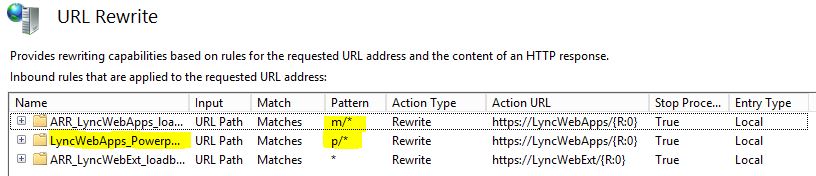
      3. Modify the pattern of the rule to match m/*
      4. Change the Scheme to HTTPS://
      5.  Check to Stop processing of Subsequent Rules.
      6. Create a new rule and repeat the options above expect have it match the pattern of p/*. This will allow PowerPoint Presentations to work.
    7. Create a new LyncWebExt Farm and point it to you LyncFrontEnd pool FQDN.
      1. After you add the address you can expand that advanced settings and expand applicationRequestRouting. Change port 80 to port 8080 and change port 443 to 4443.
      2. Click Finish
      3. Choose Yes to have the rule created.
      4. In the Routing Rules > Advanced Routing > URL Rewrite 
      5. Change the scheme to HTTPS:// 
      6. When finished your URL Rewrite should look like Image 3.
      7. Image 3
      8. Optional: For some additional security you can add a blank default HTML page to the default web site.

      Troubleshooting/Testing

      To troubleshoot the configuration for officewebapps you can try and visit https://lyncwebapps.company.com/hosting/discovery. If successful, you should see XML output. If you are on an internal network, either change your test machines DNS servers or your host files to point to the external interfaces.

      Tuesday, February 5, 2013

      Lync Enterprise 2013 Front End Service not Starting

      Problem: On Lync 2013 Enterprise Edition running on Windows Server 2012 the front end service will no start and just sits at Starting.

      Scenerio: This problem seems to occur if you are deploying a single Lync 2013 Front End server on Windows server 2012. GoogleFu seems to point toward this being an SChannel or certificate issue. This was not the issue for.

      Resolution: It appears that Lync 2013 enterprise that requires you to have 2 front end servers. Once we added the 2nd front end server to the Lync topology the front end service on both servers started with no issues.  In taking with Lync 2013 experts, it appears that something has changed with the Fabric Model in 2013 that requires redundancy from the start instead of being able to add it after the fact.

      Monday, October 8, 2012

      Change UserPrincipalName with Script via Powershell

      When setting up single sign on in Office 365, one problem you may run into is needing to change the UserPrincipalName to match your public mail domain. For example, if your primary Active Directory Domain is something like @domain.local it will not work with Office 365 and you will need to change the UserPrincipalName to @domain.com.

      After you have created the alternate UPN as described in http://techatmount.blogspot.com/2012/09/office-365-single-sign-on-errors.html, you can script the change the of UPN of users to a different UPN using the following powershell script.

      I played around with the formatting of the code below to get it nicely color coded. This means that some of the line breaks don't show well here, but a copy and a paste into notepad should format it properly.

      Import-Module ActiveDirectory            
      $privateUPN = 'domain.local'            
      $publicUPN = 'domain.edu'            
      Get-ADUser -SearchBase "ou=Students,dc=domain,dc=com" -SearchScope SubTree -filter * |             
      ForEach-Object {if ($_.UserPrincipalName){#Checks if the UserPrincipalName is null            
       $newUserName = $_.UserPrincipalName.Replace($privateUPN,$publicUPN) #Changes the UPN and sets the new name to a variable            
       <# The following is to output extra details for troubleshooting  : Note the line continuation is a back tick#>            
       #Write-Host $_.UserPrincipalName " now is " $newUserName -ForegroundColor DarkRed `            
       $_ | Set-ADUser -Server $privateUPN -UserPrincipalName $newUserName <#-WhatIf#>}#The whatif commands doesn't actaully change anything remove it to make the change.            
       else {Write-Host $_.sAMAccountName + " does not have a UPN" -ForegroundColor DarkCyan}            
       #{$newUserName = $_.UserPrincipalName.Replace($privateUPN,$publicUPN))}            
       }


      Friday, October 5, 2012

      GroupPrincipal.FindbyIndentity Search returns Well Known SID Error

      We use a custom program to assist in the creation and management of our Active Directory User Accounts. In this we use the DirectoryServices.AccountManagement namespace released in .net 3.5 to do much of the interaction with AD.

      One of the processes that gets completed is to find what groups a user should be in based on their department and add the user to that group.

      In doing this, I use the following code to search for the group based on their name.

      Dim domainContext As PrincipalContextdomainContext = New PrincipalContext(ContextType.Domain, "campus", "OU=" & Me.Department & ",OU=" & Me.accountType & ",DC=domain,DC=com")Dim group As GroupPrincipalgroup = GroupPrincipal.FindByIdentity(domainContext, Me.Department)

      Problem

      A problem arose while searching for some of our departments. For example our Communications department is identified as 'CO' and our Education department is identified as 'ED'. When we searched for the value 'CO' assigned to Me.Department, the identity found was the well known SID "Creator Owner." When we would search for 'ED', the group found was "Enterprise Domain Controllers" instead of the expected group 'ED'.

      We would also receive the following error when trying to create the user account.
      This principal object represents a well-known SID and does not correspond to an actual store object. This operation is not supported on it.
      This principal object represents a well-known SID and does not correspond to an actual store object. This operation is not supported on it.

      Solution


      The solution to the problem was actually pretty quick.
      Change

      group = GroupPrincipal.FindByIdentity(domainContext, Me.Department)

      to

      group = GroupPrincipal.FindByIdentity(domainContext, IdentityType.SamAccountName, Me.Department)

      so you are only searching against the sAMAccountName or you can choose a different IdentityType to search against. The options include

      • DistinguishedName
      • Guid
      • sAMAccountName
      • Name
      • Sid
      • UserPrincipalName
      Additionally trying to catch the MultipleMatchesException did not resolve the problem because it was never thrown during the search process.

      Hopefully this will help save some searching.

      Wednesday, October 3, 2012

      Spear Phishing Attempts

      We have recently been receiving several different types of spear phishing attempts. These messages contain customized institutional headers and information of interest specific to the users they were sent to. For example, fake recruiting information was sent to admissions and vice presidents.

      Your mailbox has exceeded the storage limit which is 20GB ,You are currently running on 20.9GB. You may not be able to send or receive new mail until you re-validate your mailbox. To re-validate your mailbox please click the link below: http://alert.xp3.biz/system_administrator_account_validate_html/


      http://sheltonspringhomes.com/1hceqer2/index.html

      We have notified users of the phishing emails and tried to sink hole the DNS addresses.

      Thursday, September 20, 2012

      Office 365 Single Sign On Errors

      Figure 1
      We are currently in the midst of setting up a Hybrid Implementation involving Exchange 2010 and Office 365 for Education where we will eventually migrate our student mail from On-Premise Exchange to Office 365.

      To enable SSO you need the following items.

      • Properly configured ADFS or Active Directory Federated Services Environment
      • Office 365 domain with verified Public Domain i.e. domain.edu
      • Follow instructions from a blog like this to enable SSO
      If you have completed these steps, you should be able verify the ADFS setup by visiting the URL https://adfs.domain.com/adfs/ls/IdpInitiatedSignon.aspx from a variety of places both internal and external clients.

      To test Single Sign-On for Office 365 go to https://portal.microsoftonline.com. You should try to login with username@domain.com and it will change your to a page similar to Figure 1. When you click on the Sign in at domain.com link, it should redirect to your ADFS environment and either login you in automatically or prompt for credentials based on configuration, current user credentials, and browser.

      Your organization could not sign you in to this service
      If you enter your credentials and receive the following error, "Your organization could not sign you into this service" as shown in the image, the solution is most likely related to the UPN that is currently configured in Active Directory.  The UPN for the user that is attempting to login needs to match that user's UPN in AD. This is typically an issue when you are using a private internal domain name such as domain.local

      Solution

      First you need to add the UPN if it doesn't currently exists in AD. 
      1. Open Active Directory Domains and Trusts
      2. Right click on the top item  Active Directory Domains and Trusts and choose Properties.
      3. Add your alternate UPN public UPN suffix. i.e. domain.com
      Second go to Active Directory Users and Computers 
      1. Open the properties of the user you are testing.
      2. Go to the Account tab.
      3. Under User logon name: change the drop down item to the new @domain.com name.
      You should now be able to login to Office 365 using your local credentials.
      WARNING: This may affect other things if you have people using the private UPN to login elsewhere, so be careful.

      Wednesday, September 5, 2012

      4 Ways to Protect Your Mobile Device

      Afraid of losing or having your device stolen?

      Worried about people getting information or pictures off of your device?

      Read on to find out 4 quick and simple ways you can protect your device and yourself from a loss of phone and your privacy.

      1. Sign up for and install a device locating App

      On iOS devices including iPods, iPads, and iPhones the most common and free App to use is Find My iPhone. By installing this App on your device and tying it to your AppleID you will be able to see where your device is at any time as long as it is enabled and connected to a network such as cellular or Wifi.

      It is important to note the just like when you are using your phone the specificity of the location is affected by things like whether your GPS or other location services are enabled, where the more stuff you keep turned on the more accurate the location will be.

      This app also allows you to ping your device making it beep, if for example you lost it somewhere in your room.

      Android has several similar types of software. The one currently recommended is SeekDroid.  This freemium software in its free mode allows you to do similar location finding features as Find My iPhone. Premium additional features are available depending on your needs.

      2. Password protect your device

      A password or lock screen on your device is your first line of defense in preventing anyone be they friend or foe from accessing your device. Why does it matter if someone can access your device? A quick look at what we all keep on these devices helps to answer that. Would you want someone posting as you to your facebook or twitter account.

      How about photos that you may have taken? Do you have any photos you wouldn't want to be displayed on the front of the newspaper? While it isn't a good idea to take such photos in the first place, as a quick look at celebrities that have recently had their phones broken into and regretted the results demonstrates. Keeping these pictures on your device without locking it is asking for trouble.

      To make matters even worse most of the time our devices contain lots of information about us that can be used for identity theft. Things like account numbers, banks cached credentials and contact information that can be used to pretend someone is us.

      So how should you protect your device with a password? On iOS the easiest solution is to choose a minimum of a 4 digit PIN number that isn't repeating or simple. For example, bad PINs are things like 1234, 1111, or 5555.

      On android devices I recommend also using a minimum of a 4 digit PIN. The swipe code is generally not a good protection mechanism because it is easy to see the fingerprint trail on the screen.

      3. Encrypt your device

      The good news for iOS users is encryption happens automatically if you have a password on the device in all newer versions of iOS. If you have an old Apple device, you should upgrade the iOS version and then enable a password to secure the device.

      On Android devices the risks from an unencrypted devices are even greater because of the access to the file system via USB. Due to the variety of devices and vendors, to find out how exactly to encrypt your specific device it is recommended that you Google it; however it will typically be in the Settings > Security options.

      4. Record your Device's Information

      If your device does get lost or stolen, you should have as much information about it as possible. This would include numbers like your ASN/IMEI or SIM number, your MAC address, model number and any other distinguishing features such as marks, or damage.  All of this information will assist law enforcement in verifying or returning your device.


      In iOS you can get this information by going to Settings > General > About.
      On Android devices this is generally available by going to Settings > About device > Status.

       With these steps in place you are on your way to protecting a tool that has become an important part of our daily lives.